Custom Icons for your Server in MacOS
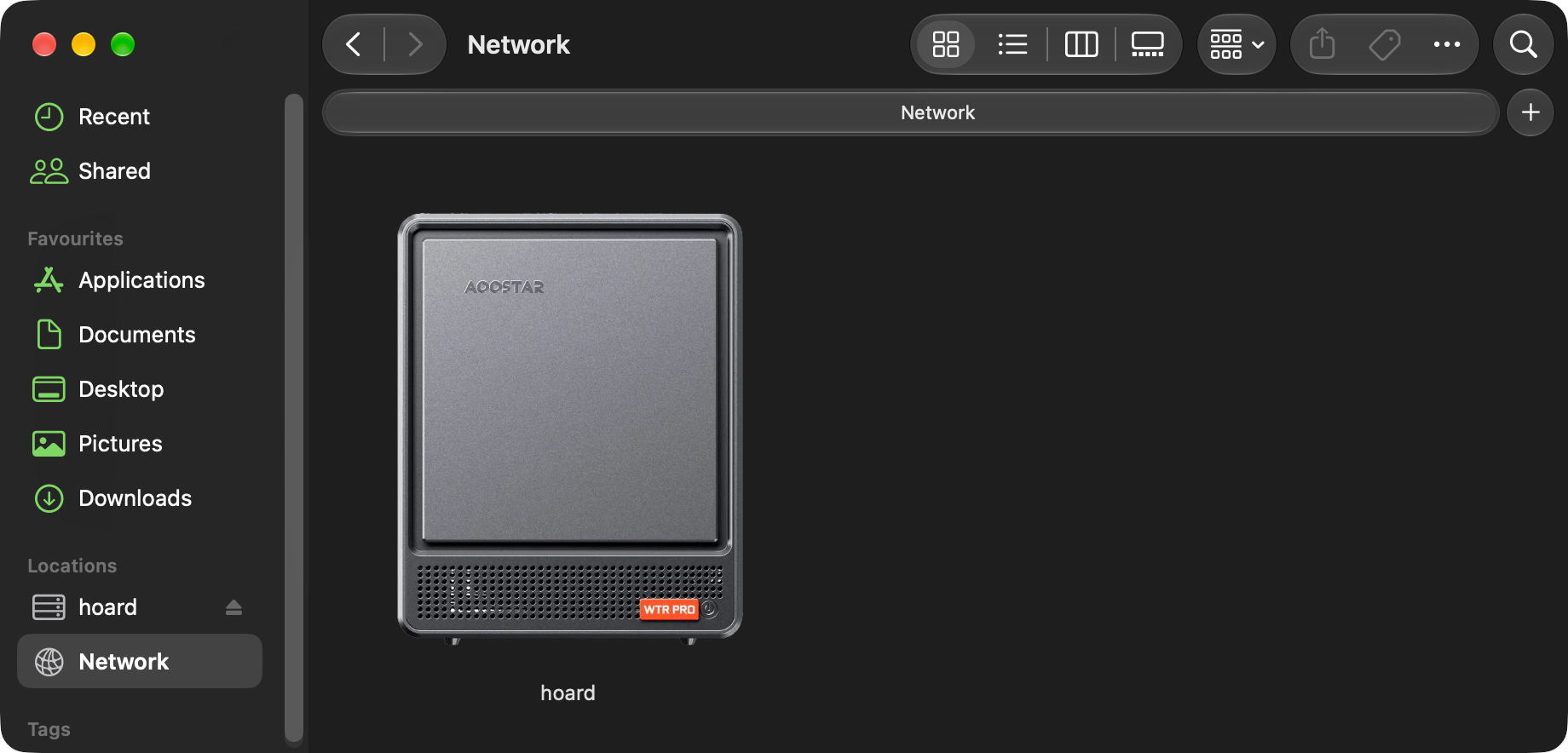
You can use dns-sd to advertise your SMB server on the local network;
dns-sd -R $(hostname) _smb._tcp local 445If you have macs as clients on the same network, your server will automatically show up in Network folder, and in the sidebar if you’ve told Finder to do so:[1]
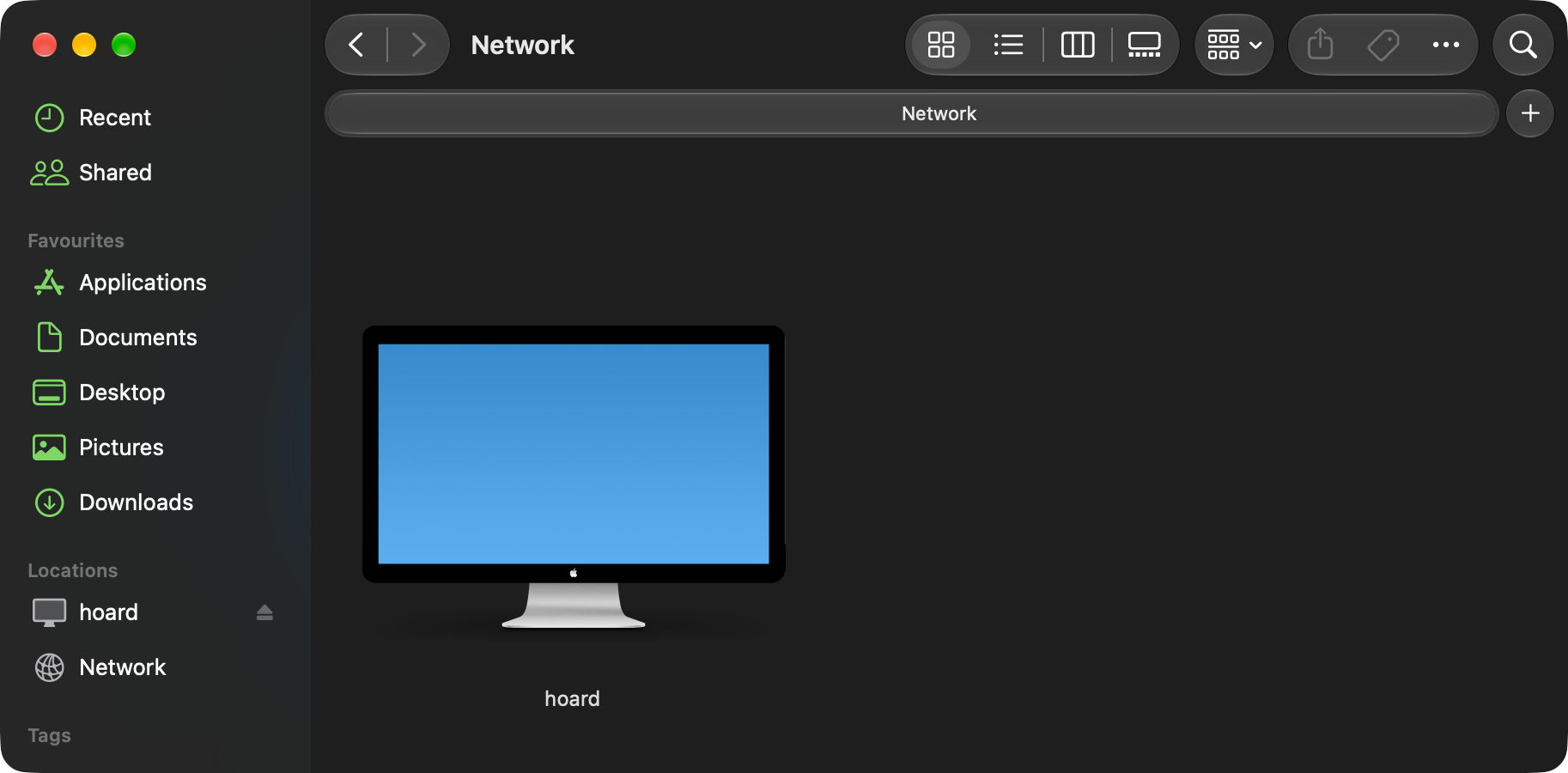
I understand that it’s meant to represent 'a computer', and that normally 'a computer' is mostly a screen to people. But it’s a bit weird when your file share is a headless server or NAS, with no screen at all.
Anything using Window’s SMB gets to show up as an ugly CRT displaying a windows bluescreen[2]. I’m actually shocked this fugly icon hasn’t changed a bit since it’s introduction in Mac OS X 10.5 Leopard, all the way back in 2007. We have to endure the squircle prison and glass-fied icons, but get to keep Apple’s middle finger to all of Windows.
If you instead run a file share from another Mac, it would show up with a hyper-specific icon for that model. Some folks figured out that it was checking the _device-info._tcp mDNS record. So if you care about aesthetics you can pretend to be an Xserve so it looks better and makes more sense.
dns-sd -R $(hostname) _device-info._tcp local 445 model=Xserve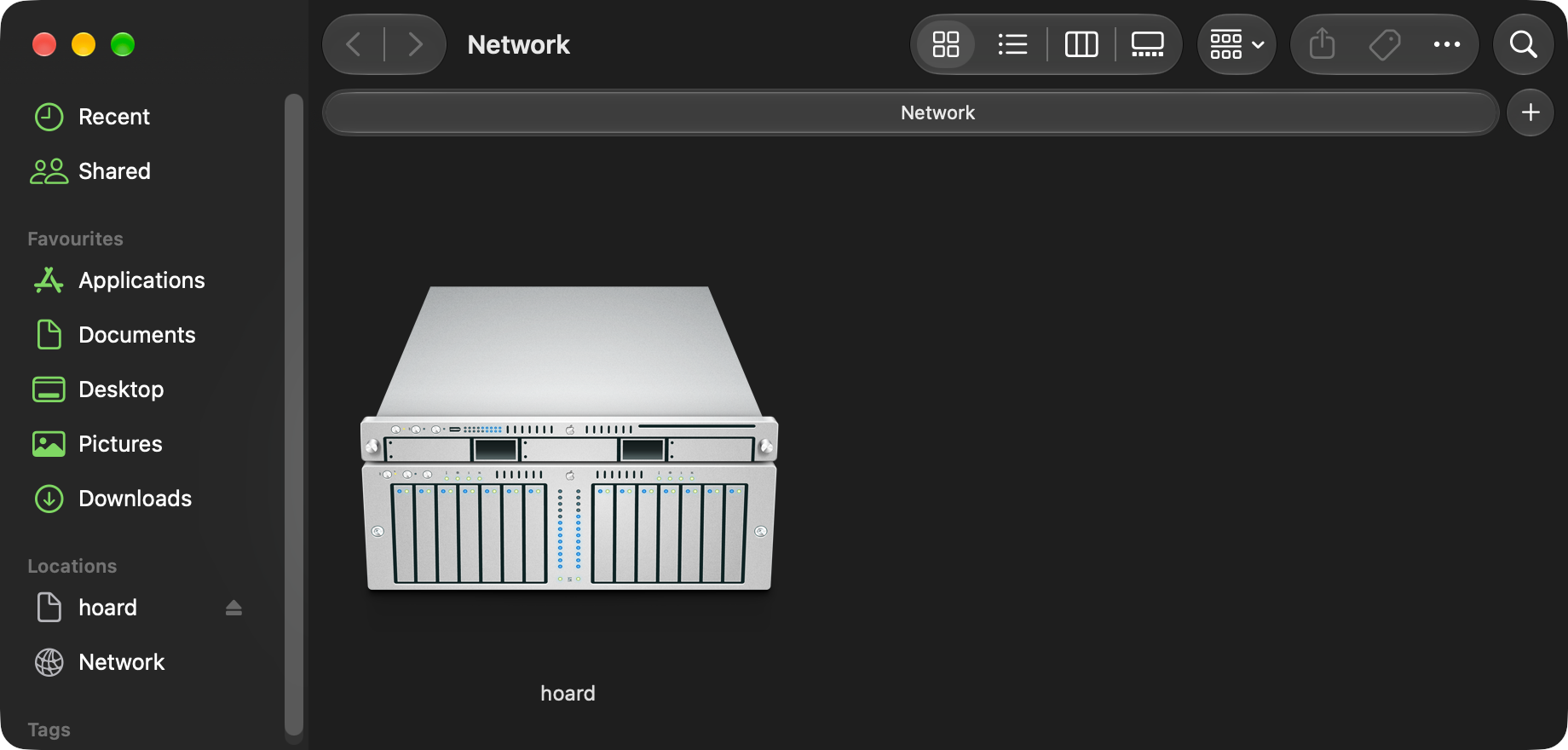
The possible device icons are in /System/Library/CoreServices/CoreTypes.bundle/Contents/Resources, with the relation to model names described in /System/Library/CoreServices/CoreTypes.bundle/Contents/Info.plist
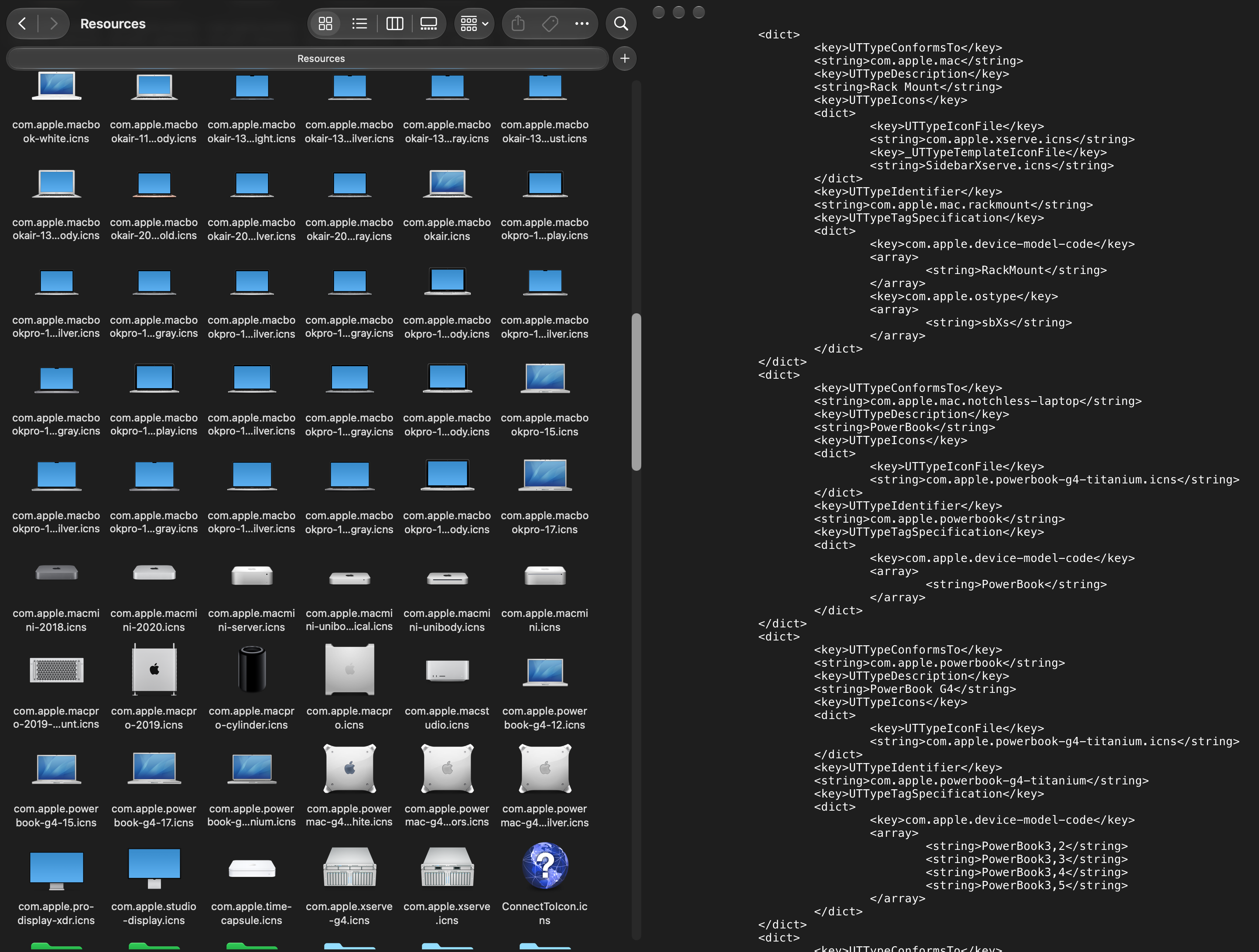
The icon files are specified with the UTTypeIconFile key, and the device model name that it corresponds to is the string in com.apple.device-model-code. The monochrome, outline icon used in the Finder sidebar seems to be defined with _UTTypeTemplateIconFile, but that doesn’t get used in MacOS 27. Instead a SF Symbol name is specified in UTTypeSymbolName. You can see in the screenshot above that Xserve doesn’t define a symbol, so it defaults to a generic file icon.
What if you’d like your own icon? Turns out there is a way to add your own device icon that is used by Finder. It is a bit odd though, as it needs to be done with an app. It uses Launch Services and the Uniform Type Identifier (UTI), the system used by apps to register what file types they can open, and supply icons for the file icons. Instead of a file type, we are going to specify the icon for a device.
The main icon can be supplied as an .icns file. You can Grab an icon you like from /System/Library/CoreServices/CoreTypes.bundle/Contents/Resources, or find something you like online. I created my own with a bit of editing to a product page photo for my Aoostar WTR PRO, and a rando website that promised PNG to ICNS file conversion that actually delivered.
For the sidebar icon, you can download the SF Symbols app to browse all of the available options. I went with server.rack.
You’ll need to create an app bundle, you can just use Finder or Terminal to create the right folders:
SMBIcon.app
└── Contents
    ├── Info.plist
    └── Resources
        └── SMBIcon.icns
It only needs to include Info.plist and an .icns icon file. Don’t even bother with an executable, so that it doesn’t require any code-signing shenanegans.
The Info.plist can be a plain text xml file, where we are going to specify the icon for our device;
<?xml version="1.0" encoding="UTF-8"?>
<!DOCTYPE plist PUBLIC "-//Apple//DTD PLIST 1.0//EN" "http://www.apple.com/DTDs/PropertyList-1.0.dtd">
<plist version="1.0">
<dict>
  <key>CFBundleIdentifier</key>
    <string>com.myowncustom.smbicon</string> (1)
  <key>CFBundleName</key>
    <string>SMBIcon</string>
  <key>CFBundleExecutable</key>
    <string>SMBIcon</string>
  <key>CFBundlePackageType</key>
    <string>APPL</string>
  <key>CFBundleVersion</key>
    <string>1</string>
  <key>CFBundleShortVersionString</key>
    <string>1.0</string>
  <key>LSUIElement</key>
    <true/>
  <key>UTExportedTypeDeclarations</key>
    <array>
      <dict>
        <key>UTTypeIdentifier</key>
					<string>com.myowncustom.smbicon</string> (1)
        <key>UTTypeDescription</key>
					<string>My SMB Icon</string>
        <key>UTTypeConformsTo</key>
          <array>
              <string>public.device</string>
          </array>
          <key>UTTypeIcons</key>
						<dict>
						<key>UTTypeIconFile</key>
							<string>SMBIcon</string> (2)
						<key>UTTypeSymbolName</key>
							<string>server.rack</string> (3)
						</dict>
          <key>UTTypeTagSpecification</key>
						<dict>
              <key>com.apple.device-model-code</key>
								<array>
                  <string>CustomSMB</string> (4)
								</array>
						</dict>
				</dict>
		</array>
</dict>
</plist>-
Identifier of your app, I’ve also used the same for the device, usually takes the form of
com.yourname.appname -
Name of the
.icnsfile in theResourcesfolder of the app. -
SF Symbol used in the Finder sidebar.
-
What model name in
_device-infoto associate to, can be anything but should be unique.
With the 'app' put together, you can register it with lsregister, a well hidden CLI utility;[3]
/System/Library/Frameworks/CoreServices.framework/Frameworks/LaunchServices.framework/Support/lsregister -f /Applications/SMBIcon.app
For the new icon to show up, you’ll need the server to advertise it’s new custom model name with dns-sd on the server. This needs to run in addition to the _smb._tcp command that advertises that it’s a SMB server:
dns-sd -R $(hostname) _device-info._tcp local 445 model=CustomSMBThe icon may not show up until you restart mDNS and/or Finder on the Mac;
sudo killall mDNSResponder
killall Finder
While you are testing out different icons, you can unregister the app with -u instead of -f:
/System/Library/Frameworks/CoreServices.framework/Frameworks/LaunchServices.framework/Support/lsregister -u /Applications/SMBIcon.app
It’s unfortunate that there isn’t a way to have the server provide it’s own icon. Meaning this method is limited to individuals with too much time, or organisations that install/configure end user macs.
Comment
- Username, 2026-01-27